How Do I Reset My Hyundai Bluetooth: Easy Step-by-Step Guide

Many Hyundai drivers enjoy the convenience of Bluetooth for hands-free calls and music streaming. But sometimes, your phone may not connect, or the car system acts strangely. If you’re asking, “How do I reset my Hyundai Bluetooth?” you’re not alone. Bluetooth issues are common, and resetting can often solve connection problems quickly.
This guide will walk you through every step, whether you have a newer Hyundai with a touchscreen or an older model with buttons. You’ll learn why Bluetooth sometimes fails, how to reset it, and a few expert tips to make sure your system works smoothly.
Let’s make your driving experience hassle-free again.
Why Hyundai Bluetooth Needs Resetting
Many people think Bluetooth is simple. But in reality, it’s a complex connection between your car’s infotainment system and your smartphone. Over time, errors can appear. Maybe your phone was updated, or you changed devices. Sometimes, saved data in the car or phone gets corrupted. This makes it hard for the devices to “talk” to each other.
Common signs you need a reset:
- Your phone doesn’t connect automatically anymore
- Music plays but calls don’t work, or vice versa
- The car says “connection failed” or “pairing unsuccessful”
- The system is slow or freezes during connection
A reset clears old information and forces both devices to start fresh. This solves most basic problems without a trip to the dealership.
Key Steps Before You Reset
Before you dive into resetting, take a few minutes to check these things. Sometimes, the solution is very simple.
- Restart your phone – Many Bluetooth glitches are fixed by a simple reboot.
- Check Bluetooth is enabled on both your phone and car.
- Make sure your phone’s software is up-to-date.
- Ensure only one device is trying to connect. If you have more than one phone paired, disconnect the others.
- Move your phone closer to the car’s infotainment system.
If you try these and still have issues, it’s time for a full reset.
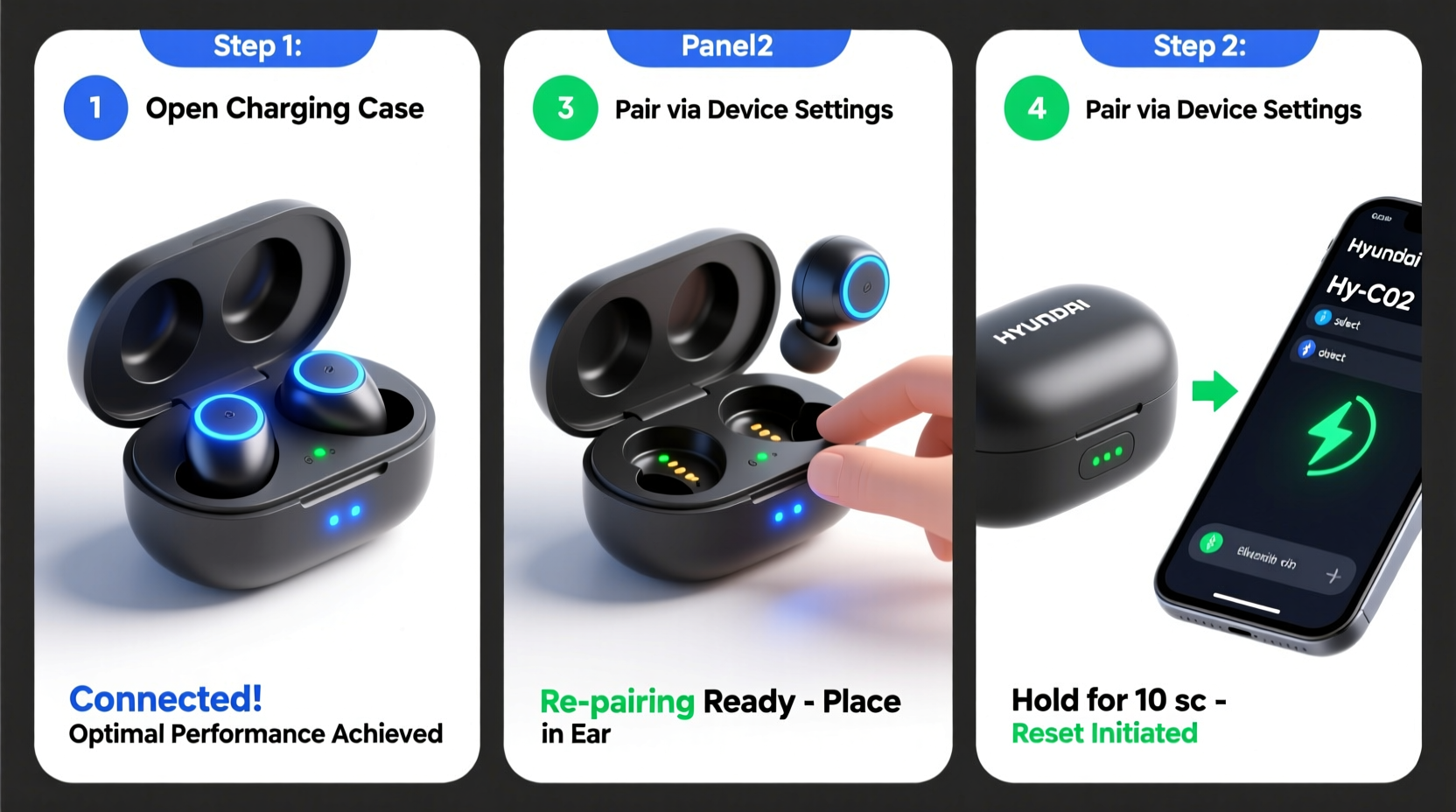
Credit: www.alibaba.com
How To Reset Hyundai Bluetooth: Step-by-step
The exact steps depend on your Hyundai model and infotainment system. Below are instructions for the most common types: touchscreen display systems (common in 2017 and newer Hyundais) and button-based systems (often found in older models).
For Touchscreen Display Systems
- Turn on your vehicle but keep it in Park.
- On the main home screen, tap Setup or Settings.
- Tap Bluetooth.
- Look for Paired Devices or Device List.
- You will see a list of all phones paired. Tap each device and choose Delete or Remove until the list is empty.
- On your phone, go to Bluetooth settings, and “forget” your Hyundai from the device list.
- Turn off the car and your phone. Wait 1-2 minutes.
- Turn both back on.
- Try pairing your phone to the car again as if you’re connecting for the first time.
For Button-based Or Non-touchscreen Systems
Older Hyundais use physical buttons for Bluetooth setup.
- Start your car and set it to Park.
- Press the Phone or Bluetooth button on the dashboard.
- The system will say, “Ready” or show a Bluetooth menu.
- Use the Tune or Enter knob to navigate to Delete Device.
- Select each device and confirm deletion.
- On your phone, open Bluetooth settings, and remove your Hyundai from the paired devices.
- Power off both the car and your phone for a minute.
- Turn on and pair again.
Resetting The Entire Infotainment System
If you still have issues, sometimes you need to reset the whole system.
- On touchscreens, go to Settings > General > System Info > Reset or Factory Reset. Confirm your choice.
- Remember: This will erase all radio presets, navigation addresses, and Bluetooth connections.
Tip: Always write down important settings before a factory reset.
Pairing Your Phone After Resetting
Once you’ve removed all old data, you need to pair your phone from scratch.
- On your phone, turn on Bluetooth.
- In your Hyundai, open the Bluetooth setup menu as described above.
- Choose Add New Device or Pair New Device.
- Your car will show a code or ask for confirmation.
- On your phone, select your Hyundai from the list of available devices.
- Enter the code if asked, or confirm the numbers match.
- Wait for the connection to complete.
Non-obvious insight: Sometimes, a car will not appear as “Hyundai” but as a code (like “MYCAR1234”). Always check your car’s screen for the exact device name.

Credit: www.riverheadhyundai.com
Troubleshooting Common Hyundai Bluetooth Problems
Even after a reset, you might face issues. Here’s how to handle the most frequent ones:
Connection Fails Every Time
- Try deleting all devices, not just your main phone.
- Check if your phone is running battery-saving mode. Some phones block Bluetooth to save power.
- Make sure your car’s system software is updated. Your Hyundai dealer can help with this.
Music Works, Calls Don’t
- On your phone’s Bluetooth settings, tap the “i” or gear icon next to your Hyundai. Make sure both “Audio” and “Phone” are checked.
- If only music or only calls work, unpair and pair again.
Static Or Poor Sound Quality
- Move your phone away from other electronics.
- Check the charging cable isn’t causing interference.
- Try another phone to see if the problem is your device.
Pro tip: Some apps (like WhatsApp or Skype) may not send calls through the car system. Try using your phone’s regular call app.
Different Hyundai Systems Compared
Not all Hyundai infotainment systems are the same. Here is a quick comparison of the most common types and how Bluetooth reset works on each.
| System Type | Reset Method | Year Range | Touchscreen? |
|---|---|---|---|
| Blue Link | Settings > Bluetooth > Delete Device | 2015-2023 | Yes |
| Standard Display | Physical buttons, Menu > Bluetooth | 2010-2017 | No |
| Navigation System | Settings > General > Factory Reset | 2018-2024 | Yes |
Non-obvious insight: Some cheaper Hyundai trims do not support Bluetooth audio, only phone calls. Check your car manual if you can’t play music.

Credit: www.youtube.com
Hyundai Bluetooth Reset: By Model
Resetting can look different depending on which Hyundai you drive. Here’s a quick guide for popular models:
| Model | Bluetooth Menu Location | Special Notes |
|---|---|---|
| Elantra | Settings > Bluetooth | Some older models: buttons only |
| Sonata | Setup > Bluetooth | 2015+ touchscreens |
| Tucson | Settings > Device Connections | May need full system reset for stubborn issues |
| Santa Fe | Bluetooth > Paired Devices | Audio-only systems on base trims |
| Kona | Setup > Bluetooth | Supports Android Auto and CarPlay too |
Bluetooth Reset: What To Avoid
Beginner mistakes can make Bluetooth problems worse. Here’s what not to do:
- Don’t try to pair while driving; you may get distracted.
- Avoid pairing too many phones. Most systems work best with one or two.
- Don’t skip deleting the car from your phone’s Bluetooth menu.
- Never press “Factory Reset” unless you have backed up your preferences.
Keeping Your Hyundai Bluetooth Working Smoothly
After you reset and reconnect, these tips will help you avoid future problems:
- Regularly remove old devices you no longer use.
- Update your phone and car system software when possible.
- If you get a new phone, always remove the old one from the car’s device list.
- Keep your infotainment system clean—dust and dirt in USB ports can cause issues.
- Restart your phone every week or two for better performance.
When To Seek Professional Help
If you still can’t connect after following all these steps, your issue may be hardware-related. Sometimes, the car’s Bluetooth module fails or there is a software bug. Visit your Hyundai dealer for diagnostics. They can update your system or replace broken parts. For more technical details, you can also check the official Hyundai USA Support page.
Frequently Asked Questions
How Many Phones Can I Connect To My Hyundai Bluetooth?
Most Hyundai vehicles let you pair up to five phones, but only one can be connected for calls or music at a time. If you keep too many devices in the list, delete the ones you don’t use to avoid confusion.
Why Does My Hyundai Bluetooth Keep Disconnecting?
Bluetooth may disconnect due to low phone battery, interference from other devices, or outdated software. Try updating your phone, keeping it charged, and moving it closer to the system.
Can I Use Bluetooth For Both Music And Calls?
Yes, most Hyundai models from 2012 onwards support both. If only one works, check your phone’s Bluetooth settings and make sure both “audio” and “call” options are enabled.
Do I Need To Reset Bluetooth After Every Phone Update?
Usually, no. Most updates do not require a reset. But if you notice connection issues right after updating, a quick reset as described above can help.
What If My Car Doesn’t Show Up In My Phone’s Bluetooth List?
Make sure the car is in pairing mode, and Bluetooth is on. If it still doesn’t show, restart both devices and try again. Sometimes, interference from other nearby Bluetooth devices can block the signal.
Getting your Hyundai Bluetooth working again doesn’t have to be hard. With these beginner-friendly steps, you’ll be back to hands-free calls and streaming music in minutes. Remember to keep your system tidy and updated for the smoothest experience on the road.