How to Turn off Weather Alerts Nissan Altima: Easy Guide

Most Nissan Altima owners enjoy the car’s many modern features, but not everyone loves the constant weather alerts that pop up on the infotainment screen. These alerts can be loud, distracting, or simply unwanted—especially if you already check the weather on your phone.
If you want to drive with fewer interruptions, you’re not alone. Many Altima drivers search for simple ways to turn off or customize these weather notifications.
In this guide, you’ll learn exactly how to turn off weather alerts on your Nissan Altima, why these alerts appear, what options you have for adjusting them, and what to do if things don’t work as expected. You’ll also get clear answers to common questions, all explained in a way that’s easy to understand—even if you’re new to using car technology.
Understanding Nissan Altima Weather Alerts
Most recent Nissan Altima models come with a built-in infotainment system. This system doesn’t just play music or help you navigate; it also connects to services that can push out weather alerts. These alerts might warn you about storms, floods, snow, or other severe conditions in your area. The idea is to keep drivers safe and informed.
But sometimes, these warnings can feel more annoying than helpful. For example, if you live somewhere with frequent weather changes, you might see alerts every day. Some people find the beeping noise or pop-up messages distracting while driving. Others just want a quieter ride.
Nissan’s system usually gets weather data from the SiriusXM Travel Link service, but your car might also connect through NissanConnect or other built-in apps. The way you control these alerts depends on your car’s model year, trim level, and software version.
Why Nissan Altima Displays Weather Alerts
There are two main reasons you see weather alerts in your Altima:
- Safety: The alerts warn you about dangerous weather, like tornadoes or icy roads, so you can adjust your driving or avoid the area.
- Convenience: You get updates without checking your phone or radio, which can be useful if you’re focused on the road.
Most weather alerts are sent based on your current location—thanks to the car’s GPS. Sometimes, you might also see alerts based on your set “home” or “work” locations in the navigation system. If you have SiriusXM or NissanConnect active, alerts can appear as pop-ups, chimes, or even voice messages.
Main Ways To Turn Off Weather Alerts
There are several ways to stop weather alerts in your Nissan Altima. The right solution depends on your car’s year and which infotainment features you use. Below are the most common methods.
1. Disable Siriusxm Travel Link Weather Alerts
If your Altima uses SiriusXM Travel Link, you can turn off weather notifications in the system settings.
Steps:
- Start your car and turn on the infotainment screen.
- Press the “Menu” or “Info” button.
- Tap the “SiriusXM” or “Travel Link” option.
- Look for “Alerts” or “Weather” settings.
- Uncheck or toggle off “Weather Alerts.”
On some models, you may need to enter a “Notifications” menu to disable specific types of alerts, such as “Severe Weather” or “Flood Warning. ”
Tip: If you can’t find “Travel Link,” check if your SiriusXM subscription is active. Some features are only available with a paid plan.
2. Adjust Nissanconnect Services
Many newer Altimas use NissanConnect to provide weather updates. Here’s how to change those settings:
Steps:
- Go to your infotainment home screen.
- Tap “Settings.”
- Look for a section named “Notifications” or “Connected Services.”
- Find the weather alert options.
- Set to “Off” or “Mute” as needed.
Some models let you choose which types of weather alerts you want to see (like snow vs. thunderstorms).
3. Turn Off All Infotainment Notifications
If you want to block all pop-up messages—not just weather alerts—you can turn off notifications entirely:
Steps:
- From the main menu, open “Settings.”
- Choose “System” or “Notifications.”
- Toggle off “All Alerts” or “Pop-up Notifications.”
This stops all notifications, including maintenance reminders and traffic alerts. Use this only if you don’t want any infotainment warnings.
4. End Your Siriusxm Subscription
If you’re not using SiriusXM radio or Travel Link for music and info, you can cancel the service. Without an active subscription, weather alerts from SiriusXM will stop.
How to do it:
- Call SiriusXM customer service or visit their website to cancel.
- Once your subscription ends, your car will no longer receive those alerts.
But remember: You’ll lose other SiriusXM features, not just weather updates.
5. Use Your Phone Or Nissan App
Some Altima models (especially 2019 and newer) let you change alert settings through the NissanConnect app on your smartphone.
Steps:
- Open the NissanConnect app.
- Go to “Settings.”
- Look for “In-Car Notifications” or “Weather Alerts.”
- Adjust the settings as you like.
If you don’t see these options, your car might not support app-based control.
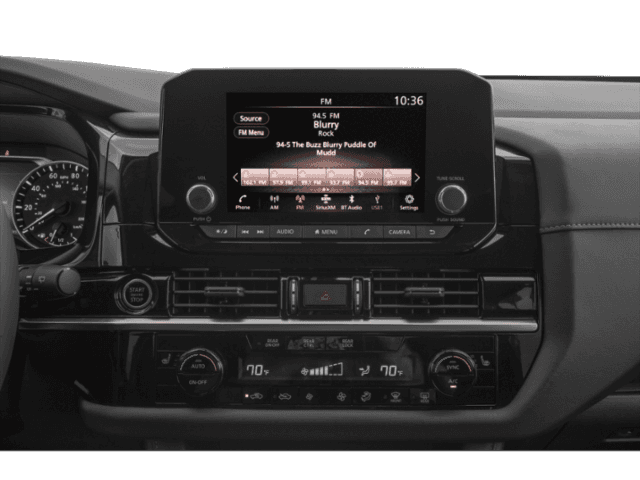
Step-by-step Example: Turning Off Weather Alerts (2020 Nissan Altima)
Let’s walk through a real example using a 2020 Nissan Altima with SiriusXM Travel Link.
- Start your car and wait for the Nissan logo to disappear.
- Tap the “Menu” button on the center console.
- Scroll to “SiriusXM” using the touch screen or dial.
- Select “Travel Link.”
- Tap “Weather.”
- Find “Weather Alert Settings.”
- Uncheck “Display Weather Alerts.”
Now, you won’t see weather warnings pop up while you drive. If you want to turn them back on later, just repeat these steps and check the box again.
Credit: www.autocentersnissan.com
What To Do If You Can’t Find The Settings
Sometimes, you may not see the exact menu or option described above. Here’s what you can do:
- Check Your Owner’s Manual: Look for “infotainment,” “notifications,” or “weather alerts” in the index.
- Update Your Infotainment Software: Sometimes, new settings appear after a software update. Ask your dealer if your car has the latest version.
- Contact Nissan Support: The Nissan customer service team can walk you through the process for your specific model year.
- Ask at Your Dealership: Service advisors see these questions often and can show you the right menu in person.
Non-obvious tip: If your system is stuck or glitchy, try restarting the infotainment unit by holding down the power button for 10 seconds.
Comparison: Weather Alert Controls By Model Year
To help you see how the process changes for different years, here’s a quick comparison.
| Model Year | Weather Alert Source | How to Disable |
|---|---|---|
| 2015-2018 | SiriusXM Travel Link | Menu > Travel Link > Weather > Alerts |
| 2019-2021 | NissanConnect + SiriusXM | Settings > Notifications > Weather Alerts |
| 2022+ | NissanConnect (App/Car) | Settings on screen or in app |
Non-obvious insight: Some early Altima trims may not have any weather alert feature if they lack navigation or SiriusXM.

Credit: www.youtube.com
How Weather Alerts Affect Your Driving
It’s important to know what happens when you turn off weather alerts:
- You won’t get warnings about dangerous conditions while driving.
- You’ll need to check the weather using your phone or listen to radio stations for updates.
- Other alerts (like low tire pressure or engine warnings) are not affected.
Some drivers use a mix: They keep weather alerts on during long road trips but turn them off for daily commutes. Adjust the settings to fit your habits.
Common Mistakes When Turning Off Alerts
Here are the mistakes many beginners make:
- Looking in the wrong menu: Weather alerts are usually under “Notifications” or “SiriusXM,” not “Audio” or “Navigation.”
- Assuming one setting controls all alerts: Maintenance, traffic, and weather alerts may have separate switches.
- Forgetting to save changes: Some systems need you to press “Save” or “Apply” before changes take effect.
- Turning off all notifications: This can hide important safety alerts, not just weather.
- Not updating software: Old infotainment versions may not let you adjust alert settings. Always check for updates.

Credit: www.nissan112.com
Troubleshooting: When Weather Alerts Won’t Turn Off
If you’ve followed the steps but weather alerts still pop up, try these fixes:
- Restart your car’s infotainment system: Hold the power button for 10 seconds.
- Disconnect and reconnect your car battery: This can reset the system, but only do this if you’re comfortable.
- Update system software: Visit the dealer or check online for updates.
- Check your SiriusXM account: If your subscription is active, alerts may keep coming unless you disable them in the car.
If none of these work, a trip to the dealership is the best next step. Sometimes, a deeper system reset or technical support is needed.
Comparison: Weather Alerts Vs Other Notifications
Understanding how weather alerts differ from other car notifications can help you adjust your settings wisely.
| Alert Type | Source | Can Disable Separately? | Impact if Disabled |
|---|---|---|---|
| Weather | SiriusXM/NissanConnect | Yes | No weather warnings |
| Traffic | SiriusXM/NissanConnect | Yes | No traffic updates |
| Maintenance | Car system | No (usually) | May miss service reminders |
| Safety | Car system | No | May miss critical warnings |
Pro tip: Only turn off the specific alerts you don’t want. Leave maintenance and safety alerts on for your peace of mind.
When To Keep Weather Alerts On
While many drivers find these alerts annoying, sometimes it’s safer to keep them active:
- During winter or storm season
- On long road trips
- If you travel through unfamiliar areas
You can always turn alerts back on if you change your mind. It’s about balancing convenience and safety.
Where To Find More Help
If you’re still having trouble, visit the Nissan Owner Portal or your local dealership. You can also check the official Nissan site for guides and support.
Frequently Asked Questions
How Do I Turn Off Weather Alerts If My Altima Doesn’t Have Siriusxm?
If your car doesn’t have SiriusXM Travel Link, weather alerts may come from NissanConnect or a built-in app. Go to “Settings” and look under “Notifications” or “Connected Services.” If you don’t see an option, check your owner’s manual or ask your Nissan dealer.
Will Turning Off Weather Alerts Affect My Navigation Or Music?
No, turning off weather alerts only stops the weather pop-ups and sounds. Your navigation, radio, and music features will still work as usual.
Can I Turn Off Only Certain Types Of Weather Alerts (like Just Tornado Warnings)?
On some Nissan Altima models, you can choose which types of alerts you want. In the weather alert settings menu, look for options to select or deselect specific alerts (like “Severe Weather” or “Floods”). Not all models offer this.
Why Do Weather Alerts Keep Coming Back After I Turn Them Off?
This usually happens if your system resets or if you update your car’s software. Sometimes, an active SiriusXM or NissanConnect account will re-enable alerts after updates. Check your settings again or talk to your dealer if the problem continues.
Is It Safe To Disable All Notifications In My Nissan Altima?
It’s not recommended to turn off all notifications. You might miss important safety or maintenance warnings. Try to only disable the specific alerts that bother you, and keep critical notifications on.
Turning off weather alerts in your Nissan Altima is simple once you know where to look. Take a few minutes to adjust your settings, and enjoy a quieter, less distracting drive—without missing out on what matters most.