How to Turn off Consider Taking a Break Hyundai: Quick Guide

If you’re driving a Hyundai, you might have seen a message on your dashboard that says Consider Taking a Break. This warning can surprise or even worry some drivers, especially if they don’t know what it means or how to turn it off. Understanding why your Hyundai gives this alert and how you can manage it makes your driving experience safer and more comfortable.
This guide will show you how to turn off Consider Taking a Break Hyundai, why the message appears, and what you should know before you disable or ignore this feature. You’ll also learn about the technology behind it, get step-by-step instructions, and see common mistakes to avoid. Whether you’re a new Hyundai owner or just curious about your car’s smart features, this article is built for clarity and confidence.
What Is The “consider Taking A Break” Feature?
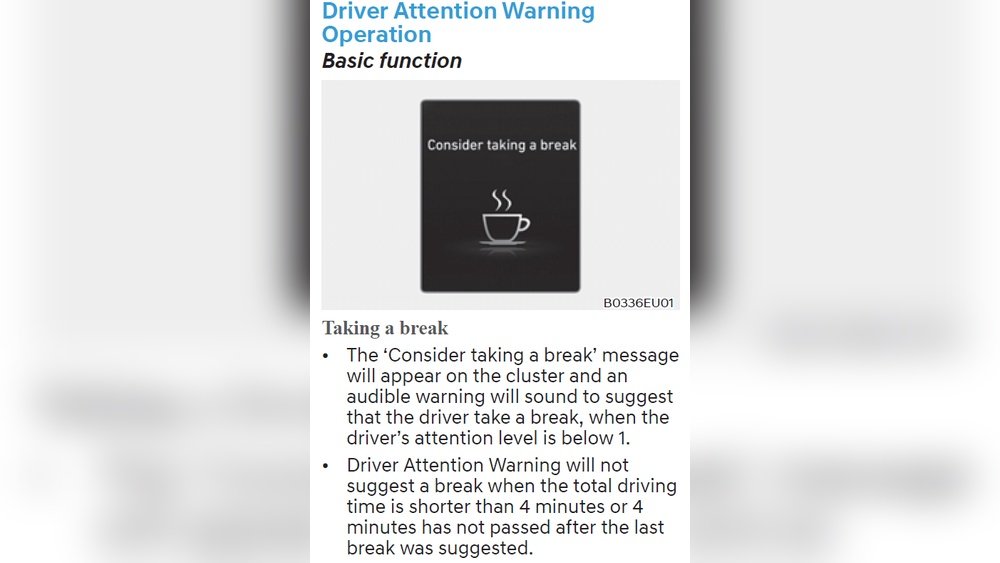
Many modern Hyundai vehicles have a driver attention warning system. When you see Consider Taking a Break, it’s your car’s way of saying it thinks you might be getting tired or distracted. The system uses sensors and cameras to watch how you drive. If it notices unusual behavior—like sudden steering changes or not staying in your lane—it will suggest you take a rest.
This feature is mostly found in Hyundai models made after 2018. It’s part of the Hyundai SmartSense safety package, which aims to reduce accidents caused by drowsy or inattentive driving. Other car brands have similar systems, but Hyundai’s approach is simple and clear, making it easy for drivers to understand and respond.
Why Does The Warning Appear?
The system doesn’t know your exact health or energy level. Instead, it looks for driving patterns that often happen when people are tired. Here are some examples:
- You make frequent small steering corrections.
- The car drifts left or right in the lane.
- You suddenly jerk the steering wheel.
- You’ve been driving for a long time without stopping.
If the system notices one or more of these signs, it will show the message. Sometimes, the warning may appear even if you feel fine. This can happen if the road is winding, the weather is bad, or you’re driving in city traffic with lots of stops and turns.

Credit: www.youtube.com
How The System Works In Your Hyundai
Let’s look deeper at how the driver attention warning actually functions. The car uses a combination of sensors, including:
- Steering angle sensors that notice quick or jerky movements.
- Lane-keeping cameras to see if you’re drifting or not centered.
- Speed sensors to track your driving pattern over time.
- Some models use facial recognition cameras to monitor your eyes or head position.
The system collects this data and runs it through a computer program. If the program sees patterns that match those of a tired driver, it activates the alert.
Here’s a table comparing typical triggers for the warning in different situations:
| Scenario | Chance of Warning | Common Cause |
|---|---|---|
| Long highway drive (2+ hours) | High | Fatigue risk increases |
| City driving, frequent stops | Medium | Erratic steering input |
| Mountain roads | Low/Medium | Sharp turns confuse system |
| Bad weather (rain/wind) | Medium | Lane drift from wind or water |
Should You Turn Off This Warning?
Before you try to disable the message, it’s important to ask: Is it safe or smart to turn off Consider Taking a Break?
This feature is designed to protect you and others on the road. If you’re truly tired, ignoring the warning could put you at risk. However, some drivers get false alerts, especially in tricky driving conditions. If the warning pops up too often or feels annoying, you may want to adjust the settings or turn it off.
Non-obvious insight: Some Hyundai models let you adjust the system’s sensitivity instead of turning it off completely. Lower sensitivity means you get fewer alerts, but the safety feature stays active.
Step-by-step: How To Turn Off Consider Taking A Break In Hyundai
Not all Hyundai cars allow you to turn off this feature, but many do. The steps may look a bit different depending on your model and year. Here’s a general guide for most Hyundais with the SmartSense system (like the Elantra, Sonata, Tucson, Santa Fe, and Palisade).
1. Start Your Vehicle
Turn the ignition to ON or start the engine. Make sure the car is in Park for safety.
2. Access The Settings Menu
Find the Settings button on your dashboard touchscreen. It’s usually marked with a gear icon.
- For older models, you may need to press a “Menu” or “Setup” button instead.
3. Navigate To The Driver Assistance Section
Look for a menu option called Driver Assistance, Vehicle, or Safety. The exact name can vary.
- In some models, this might be under User Settings or Convenience.
4. Find The Driver Attention Warning Option
Scroll through until you see Driver Attention Warning or DAW. Some cars call it Attention Assist.
- You might see a coffee cup icon or a steering wheel symbol next to it.
5. Turn Off Or Adjust Sensitivity
You’ll usually see options like:
- On/Off
- Standard/Sensitive
- Warning Only
Choose Off if you want to disable the alert completely. If your car only allows you to change sensitivity, select Standard or the lowest setting to reduce alerts.
Here’s a quick comparison of what these options do:
| Setting | Description | Alert Frequency |
|---|---|---|
| Off | Feature disabled | None |
| Standard | Normal sensitivity | As designed |
| Sensitive | More frequent alerts | High |
| Warning Only | Shows message, no sound | Visual only |
6. Confirm And Exit
Once you make your choice, press Back or Home to leave the menu. Your settings are saved automatically.
Pro tip: If you can’t find the option, check your owner’s manual for the exact menu path. Some base models do not allow you to turn off the feature.
How To Turn Off The Warning If You Don’t See The Option
Some Hyundai models, especially lower trims or older versions, do not have a manual switch for this warning. If that’s your case, try these alternatives:
- Drive more smoothly. Avoid quick or repeated steering corrections.
- Take regular breaks. If you’re on a long drive, stop every 2 hours, which also prevents the alert.
- Keep your lane. Use lane assist or cruise control where possible.
- Update your software. Sometimes, a dealer can update your car’s computer to add more control over features.
If you still get the warning too often, visit your Hyundai dealer. They may be able to adjust the system for you.
Credit: www.palisadeforum.com
Common Mistakes When Trying To Turn Off The Warning
Many beginners make errors when handling this feature. Here are mistakes to avoid:
- Looking in the wrong menu. Not all settings are under “Safety.” Sometimes, it’s under “Convenience” or “User Settings.”
- Forgetting to save changes. Some Hyundais require you to press “OK” or “Apply.”
- Confusing with other alerts. Don’t mix up “Consider Taking a Break” with lane departure or collision warnings.
- Disabling all safety alerts. Turning off too many features can reduce overall safety.
- Assuming all models are the same. Menu paths and options change between years and trims.
Non-obvious insight: If your Hyundai is part of a fleet or rental, some settings may be locked. Only the owner or dealer can change them.
What To Do When The Warning Still Appears
If you’ve turned off the feature but still see the alert:
- Restart your car to reset the system.
- Double-check the menu; sometimes the setting returns to default after updates.
- Make sure you didn’t only mute the sound; the message can still show.
- If nothing works, contact a Hyundai service center.
Sometimes, a warning can appear due to a software glitch. Dealers can often fix these with a quick update.
Safety Tips: Staying Alert On The Road
Even if you turn off the warning, it’s important to stay safe while driving. Here’s what experts recommend:
- Take a break every 2 hours on long trips.
- Drink water and avoid heavy meals before driving.
- Switch drivers if possible on road trips.
- Watch for signs of fatigue: Yawning, heavy eyes, or losing focus.
- Use other safety features like lane assist and cruise control.
Many accidents are caused by tired drivers, so listen to your body even if you disable the alert.
Comparison: Hyundai Vs. Other Brands
How does Hyundai’s “Consider Taking a Break” feature compare to others? Here’s a quick look:
| Brand | Feature Name | User Control | Extra Functions |
|---|---|---|---|
| Hyundai | Driver Attention Warning | Adjustable/Off | Simple alert |
| Mercedes-Benz | Attention Assist | Adjustable | Suggests rest stops |
| Toyota | Driver Attention Monitor | Some control | Works with lane assist |
| Honda | Driver Alertness Monitor | Minimal control | Mostly visual |
Hyundai gives drivers more control than some brands, but always check your exact model for details.

Credit: www.reddit.com
When To Leave The Feature On
There are cases when it’s best to keep Driver Attention Warning active:
- If you drive at night or for long distances.
- If you’re a new driver or easily distracted.
- If you often carry passengers, especially children.
The system can add an extra layer of safety, catching signs of tiredness you may not notice.
Final Thoughts
Turning off the Consider Taking a Break warning in your Hyundai is possible on most models, but it’s important to understand what you’re doing and why. This feature exists to keep you and others safe. If you decide to turn it off, do it through your car’s menu system and remember to check your model’s manual for exact steps.
If you can’t find the right setting, or if the alert keeps coming back, contact your dealer for help. It’s better to adjust the system than to ignore a real sign of fatigue. Always use your best judgment on the road and take breaks when needed.
For more details on Hyundai’s safety features, you can visit the official Hyundai SmartSense page.
Frequently Asked Questions
How Do I Know If My Hyundai Has The Driver Attention Warning Feature?
Most Hyundai models from 2018 onward with SmartSense include Driver Attention Warning. Check your owner’s manual or the dashboard settings menu for options like “Driver Attention Warning” or “DAW. ”
Can I Permanently Disable The Consider Taking A Break Alert?
In many Hyundai vehicles, you can turn off the feature through the settings menu, but some models only let you adjust sensitivity. If you can’t find the option, ask your dealer if a software update is available.
Why Does The Alert Appear Even When I’m Not Tired?
The system doesn’t measure your actual tiredness. It watches for driving patterns that often mean fatigue, like lane drifting or sudden steering. Other factors, like weather or winding roads, can also trigger it by mistake.
Will Turning Off This Warning Affect My Car’s Warranty Or Safety?
Turning off Driver Attention Warning won’t affect your warranty, but it does reduce one layer of safety. Other systems, like lane assist or collision warning, still work unless you turn them off too.
Is There A Way To Get Fewer False Alerts Without Turning Off The System?
Yes. Try setting the system to “Standard” or lowering sensitivity if your model allows it. Also, driving smoothly and keeping your car’s sensors clean can reduce false warnings.