How to Install Navigation App on Toyota: Step-by-Step Guide

Many Toyota drivers want to use a navigation app in their car, but the process can feel confusing. You may have heard about built-in Toyota navigation, Apple CarPlay, Android Auto, or third-party apps like Waze and Google Maps. With so many options and different Toyota models, it’s easy to get lost.
But don’t worry—installing a navigation app in your Toyota is easier than you think. Whether your car is brand new or a few years old, you can enjoy turn-by-turn directions, live traffic updates, and more.
This guide will walk you through every step in plain English. You’ll learn about your Toyota’s infotainment system, how to connect your smartphone, the best navigation apps to use, and how to solve common problems. By the end, you’ll know exactly how to get navigation running smoothly in your Toyota—without any guesswork.
Understanding Navigation Options For Toyota
Before you start, it’s important to know that not every Toyota uses the same navigation system. Some Toyotas have built-in navigation. Others use Apple CarPlay or Android Auto to connect apps from your phone to the car’s screen. Let’s break down your options:
Built-in Toyota Navigation
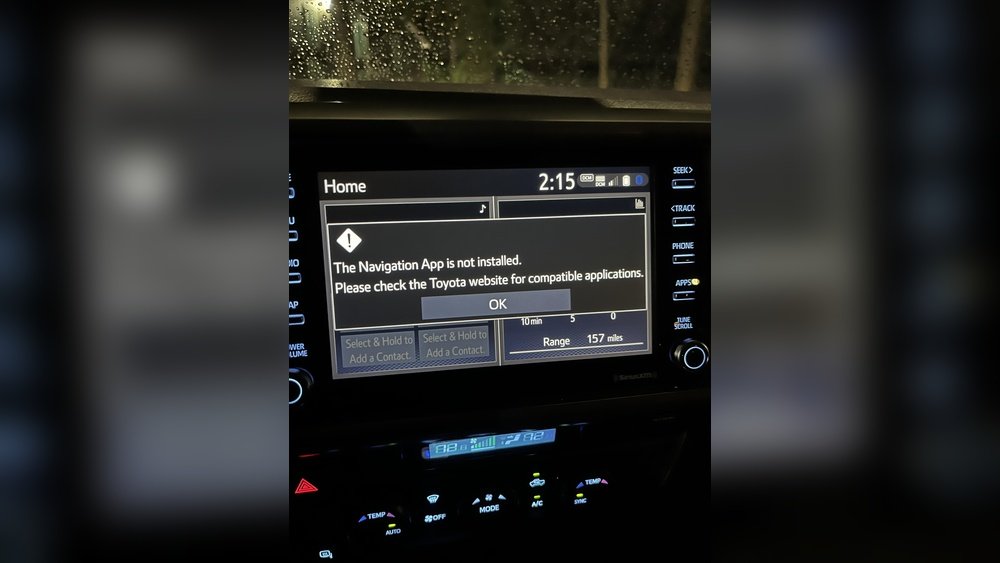
Many newer Toyotas (like Camry, RAV4, and Highlander) have a built-in navigation system called Toyota Entune or Toyota Audio Multimedia. This system has a pre-installed map and navigation app. You control it with the car’s touchscreen, steering wheel buttons, or voice commands.
Pros:
- No need to connect a phone
- Works even if your phone dies
- Integrated with the car’s other features
Cons:
- Maps can be outdated if you don’t update them
- Fewer features than Google Maps or Waze
- Some models require a paid subscription for full features
Apple Carplay And Android Auto
If your Toyota has Apple CarPlay or Android Auto (most models from 2018 onward), you can use navigation apps from your phone on the car’s screen. Popular apps include Google Maps, Apple Maps, and Waze.
Pros:
- Always up-to-date maps
- Access to your contacts, music, and messages
- Voice control with Siri or Google Assistant
Cons:
- Requires a smartphone
- Needs a cable or Bluetooth connection
- Some older Toyotas need a software update to add CarPlay/Android Auto
Using Your Phone As A Standalone Navigation Device
Even if your Toyota doesn’t support CarPlay or Android Auto, you can still use your phone for navigation. Just mount your phone on the dashboard and use the speaker for voice directions.
Non-obvious insight: Many drivers don’t realize that even with an older Toyota, you can still use the latest navigation apps—just not on the car’s screen.
How To Check What Your Toyota Supports
Not sure what your Toyota can do? Here’s how you can check:
- Look at your touchscreen. If you see icons for “Apple CarPlay,” “Android Auto,” or “Navigation,” you probably have those features.
- Check your owner’s manual. This book explains the infotainment system in detail.
- Search your car’s model and year online. The Toyota website has compatibility lists.
- Visit your Toyota dealer. They can update your system or add features in some cases.
Tip: Some Toyotas need a software update or a hardware add-on to support CarPlay or Android Auto. Always ask your dealer if you’re unsure.
Credit: www.jdpower.com
Step-by-step: Installing Navigation App Via Carplay Or Android Auto
If your Toyota supports CarPlay or Android Auto, follow these steps:
For Apple Carplay
- Connect your iPhone. Use a USB cable to plug your iPhone into the car’s USB port. Some 2022+ Toyotas support wireless CarPlay, but most require a cable.
- Allow CarPlay on your phone. A message will pop up. Tap “Allow.”
- Your phone’s apps show on the car screen. Tap “Maps,” “Waze,” or any other navigation app.
- Start navigating. Enter your destination and follow voice instructions.
For Android Auto
- Connect your Android phone. Use a USB cable.
- Install the Android Auto app. (Many new phones have it pre-installed.)
- Allow permissions. Accept the prompts on your phone.
- Tap your navigation app. Google Maps and Waze work best.
- Navigate as you would on your phone.
Non-obvious insight: If you don’t see CarPlay or Android Auto, try a different USB cable. Some cheap cables only charge and don’t transfer data.
Installing Navigation App On Built-in Toyota System
If your Toyota has a built-in system (like Entune), the process is different:
Updating Or Adding Apps
- Connect your car to Wi-Fi. Go to “Setup,” then “Wi-Fi” on the touchscreen.
- Open the Toyota App Suite. This is where you find apps like Scout GPS, Yelp, and more.
- Install or update navigation apps. Tap “Update” or “Install” next to the app you want.
- Follow the on-screen instructions.
Updating Built-in Maps
Many Toyota navigation systems need regular map updates for accurate directions:
- Download updates from the Toyota website onto a USB stick.
- Plug the USB into your car.
- Follow the touchscreen prompts to update the maps.
Practical tip: Some map updates are free, but some cost money. Check with your dealer or the Toyota website for details.

Credit: www.youtube.com
Using Your Phone As A Navigation Device
If your Toyota doesn’t support app integration, you can still use your smartphone:
- Install your favorite navigation app (like Google Maps or Waze) from the App Store or Google Play.
- Buy a sturdy phone mount for your dashboard or air vent.
- Connect your phone to the car’s Bluetooth for voice directions through the speakers (if supported).
- Keep your phone charged using a car charger.
Real-world example: Many taxi and ride-share drivers use a phone mount, even in cars with built-in navigation, because apps like Waze offer better live traffic data.
Comparing Toyota Navigation Options
To help you choose, here’s a side-by-side look at the most popular navigation methods for Toyota drivers:
| Navigation Type | Works Without Phone? | Updates Needed? | Voice Control | Cost |
|---|---|---|---|---|
| Built-in Toyota Navigation | Yes | Yes (manual) | Yes | May require subscription |
| Apple CarPlay / Android Auto | No | No (auto updates) | Yes (Siri/Google) | Free with smartphone |
| Phone Only (Mounted) | No | No (auto updates) | Yes (phone assistant) | Free with smartphone |
Best Navigation Apps For Toyota
There are many navigation apps, but not all work well in a car. Here are the top choices for Toyota owners:
- Google Maps – Most popular, with live traffic, lane guidance, and offline maps.
- Waze – Community-based, shows police, hazards, and real-time traffic from other drivers.
- Apple Maps – Best for iPhone users, easy to use, and integrates with Siri.
- Scout GPS Link – Made for Toyota Entune systems, offers basic navigation.
- HERE WeGo – Good offline maps, works well for international travel.
Pro tip: Google Maps and Waze usually offer the most accurate traffic data. Many Toyota drivers prefer these over built-in apps.
Common Problems And Easy Fixes
Even with the right equipment, things can go wrong. Here’s how to handle the most common issues:
Carplay/android Auto Not Working
- Try a different USB cable. Some only charge, not transfer data.
- Restart your phone and the car.
- Check if your Toyota needs a software update.
- Make sure CarPlay/Android Auto is enabled in the car’s settings.
Built-in Navigation Not Updating
- Double-check your Wi-Fi connection.
- Make sure you’re using the correct USB stick for updates.
- Visit the Toyota website for the newest map files.
Navigation App Crashing
- Update the app in the App Store or Google Play.
- Free up space on your phone by deleting unused apps.
- Restart your phone.
Advanced tip: If you want wireless CarPlay/Android Auto but your Toyota only supports wired, look for a plug-and-play wireless adapter online. It’s an easy upgrade for most models.
Safety And Legal Tips
When using a navigation app in your Toyota, safety comes first:
- Set your destination before driving. Avoid typing while on the road.
- Use voice commands whenever possible.
- Mount your phone securely. Avoid blocking your view.
- Obey local laws. Some places ban touching your phone while driving.
Data Usage And Privacy
Navigation apps use mobile data and can store location history. Here’s what you should know:
- Google Maps and Waze use about 5–10 MB of data per hour of driving.
- You can download offline maps to save data.
- Check your app’s privacy settings to control location sharing.
Updating Your Toyota’s Infotainment System
Keeping your Toyota’s system up to date ensures the best experience. Here’s a simple comparison of how updates work:
| System | How to Update | Update Frequency | Cost |
|---|---|---|---|
| Built-in Entune Navigation | USB stick or dealer visit | 1-2 times a year | May cost $50–$150 |
| CarPlay / Android Auto Apps | App Store/Play Store | Automatic, often monthly | Free |
Important: Don’t ignore update notifications—new versions often fix bugs and add features.
What If My Toyota Doesn’t Support App Integration?
If you have an older Toyota, you have a few options:
- Upgrade your head unit. Many brands make aftermarket touchscreens that fit Toyota dashboards and support CarPlay/Android Auto.
- Use a phone mount and Bluetooth for directions.
- Visit your dealer. Some older Toyotas can be upgraded with official kits.
Example: A 2016 Toyota Corolla doesn’t have CarPlay, but you can buy a compatible head unit online and have it installed for $300–$600.

Credit: www.youtube.com
When To Use Built-in Vs. Phone Apps
Some situations call for built-in navigation, while others are better with phone apps:
- Built-in navigation is better if you drive in areas with no cell service.
- Phone apps are best for real-time traffic, rerouting, and searching new places.
Unique insight: Many long-distance drivers download offline maps for Google Maps as a backup, even if they use CarPlay daily.
Where To Get Official Toyota Help
If you run into trouble, Toyota offers many resources:
- Owner’s manual (in your glovebox and online)
- Toyota customer support (phone or website)
- Dealership service center for technical help
For more technology tips, check out the official Toyota Audio Multimedia site.
Frequently Asked Questions
How Do I Know If My Toyota Supports Apple Carplay Or Android Auto?
Check your car’s touchscreen for CarPlay/Android Auto icons, read the owner’s manual, or search your Toyota model and year on the Toyota website. Many 2018+ models support these features.
Can I Add Navigation To An Older Toyota?
Yes, you can mount your phone for navigation or upgrade the car’s stereo system with a new head unit that supports CarPlay or Android Auto.
Do Navigation Apps Use A Lot Of Mobile Data?
No, most apps use 5–10 MB per hour. You can download offline maps if you want to save data or drive in areas with poor signal.
Is Built-in Toyota Navigation Better Than Phone Apps?
Built-in navigation works without a phone or data, but phone apps like Google Maps and Waze usually have better traffic info and more features.
Can I Update Toyota’s Built-in Navigation Maps For Free?
Some updates are free, but major map updates may cost $50–$150. Check with your Toyota dealer or the Toyota website for details.
Getting a navigation app running in your Toyota is simple when you know your options. Whether you use your car’s built-in system, connect your smartphone, or just mount your phone on the dash, you’ll always find your way. With a little setup and the right tools, your Toyota can guide you wherever you need to go—quickly, safely, and with confidence.